Oracle NetSuite now has a native Model Context Protocol (MCP) server, the NetSuite AI Connector Service. Any AI client that speaks MCP can use it to look up records, run saved searches and reports, and query data with SuiteQL, all inside the permissions of the signed-in user's role. Microsoft Copilot Studio can add MCP servers as tools, so a Copilot agent can answer questions from live NetSuite data without a custom integration.
This guide covers the NetSuite setup (features, SuiteApp, role, integration record), the Copilot Studio setup (MCP server and OAuth), and the setting most guides get wrong: for Copilot Studio, the NetSuite integration record must not be a public client. Oracle's documentation describes a public client, which suits Claude and ChatGPT, but Copilot Studio needs a client secret, and NetSuite only issues one when Public Client is off.
Short version: enable three features, install the free MCP Standard Tools SuiteApp, create a non-Administrator role with MCP permissions, create an OAuth 2.0 integration record with Public Client off, then add NetSuite as an MCP tool in Copilot Studio and register Copilot's callback URL back in NetSuite. Test in a sandbox first.
What is the NetSuite AI Connector Service?
The AI Connector Service is NetSuite's implementation of MCP, the open standard that lets AI applications discover and call tools exposed by another system. NetSuite publishes those tools over a remote MCP endpoint (Streamable HTTP), and the AI client signs in with OAuth 2.0.
What the agent can do depends on two things:
- Which tools are installed. Oracle's free MCP Standard Tools SuiteApp adds tools for record operations, saved searches, reports, and read-only SuiteQL. You can also build custom tools in SuiteScript.
- The role the user signs in with. Tools run with that role's permissions. They can't run as Administrator, call external APIs, or run elevated scripts.
The service and the SuiteApp have no NetSuite fee. You pay for the AI client, which here means Copilot Studio capacity (see Licensing below).
What you need before you start
Requirement
Notes
NetSuite admin access
To enable features, install the SuiteApp, and create the role and integration record.
A sandbox account
Strongly recommended for the first connection.
MCP Standard Tools SuiteApp
Free, from the SuiteApp Marketplace.
A non-Administrator NetSuite role
The AI Connector Service blocks the Administrator role.
Copilot Studio and a Power Platform environment
With Copilot Credits or eligible licensing.
Permission to add connectors
Power Platform data policies (DLP) apply to MCP connectors, so check with your Power Platform admin.
Step 1: Enable the required features in NetSuite
Go to Setup > Company > Enable Features and turn on:
Feature
Tab
Why
Server SuiteScript
SuiteCloud
MCP tools are SuiteScript.
OAuth 2.0
SuiteCloud
The connector authenticates with OAuth 2.0.
REST Web Services
SuiteCloud
Required by the MCP Standard Tools SuiteApp.
Save. Enabling features doesn't give anyone access yet. The role and integration record do that.
Step 2: Install the MCP Standard Tools SuiteApp
Open the SuiteApp Marketplace, search for MCP Standard Tools, and install it. Without it, OAuth can succeed and the agent still shows no tools, which looks like an authentication problem but isn't.
Use the standard tools first. Build custom MCP tools only when you need something they don't cover, such as a validation, an approval step, or a single tool that wraps a multi-record business process.
Step 3: Create a role for MCP access
Create a dedicated role (for example, MCP – Copilot Read Only). Don't copy the Administrator role. NetSuite won't let an Administrator session use the connector.
Permission
Level
MCP Server Connection (Setup)
Required
OAuth 2.0 Access Tokens (Setup)
Required. Not the older "Access Tokens" permission, which is for TBA.
REST Web Services (Setup)
Required for the standard tools
Lists and transactions
Only what the agent needs, View level to start
Assign the role to the people who will use the agent. Each user signs in as themselves, so NetSuite's audit trail shows who did what.
Start read-only. Give the role View access to customers, items, and the transactions you want to query. Add Create/Edit only after you've watched the agent run against real records and you know which tools it calls.
Step 4: Create the OAuth 2.0 integration record
Go to Setup > Integration > Manage Integrations > New and name it something like Copilot Studio – NetSuite MCP.
On the Authentication tab:
Setting
Value
Token-Based Authentication
Off
OAuth 2.0: Authorization Code Grant
On
Public Client
Off. Copilot Studio needs the client secret (see why in Step 6).
Scope: NetSuite AI Connector Service
On. Leave RESTlets, REST Web Services and SuiteAnalytics Connect off.
Client Credentials (Machine to Machine) Grant
Off
Redirect URI
A placeholder for now (see below)
Token lifetime. The Refresh Token Validity (in hours) field sets how long a refresh token stays valid, anywhere from 168 to 720 hours (7 to 30 days). When it expires, each user has to sign in to NetSuite again from Copilot. A longer lifetime means fewer sign-in prompts. A shorter one limits how long a lost or leaked token works. For a first rollout, start at 168 hours and lengthen it once users and security are comfortable.
Save, and copy the Client ID and Client Secret right away. NetSuite shows them only once. If you lose them, reset the credentials on the integration record and update Copilot Studio.
About the redirect URI. NetSuite won't save the record without one, but Copilot Studio only shows its callback URL after you've created the MCP tool, and that needs the Client ID. Save the record with a placeholder such as https://localhost/callback, then replace it with Copilot's callback URL in Step 6. Sign-in will fail until you do.
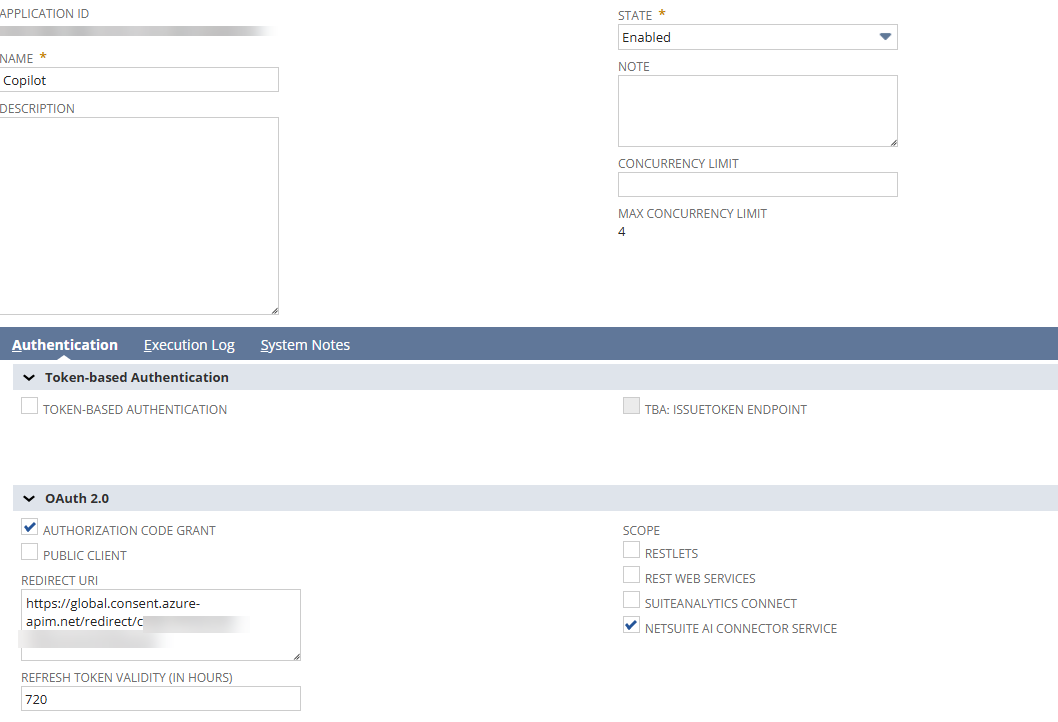
NetSuite can also create an integration record automatically the first time some AI clients connect. It stays pending until an admin enables it, and once it's enabled it can only be disabled, not set back to pending. If you see an unexpected pending record under Manage Integrations, that's where it came from.
Step 5: Add NetSuite as an MCP tool in Copilot Studio
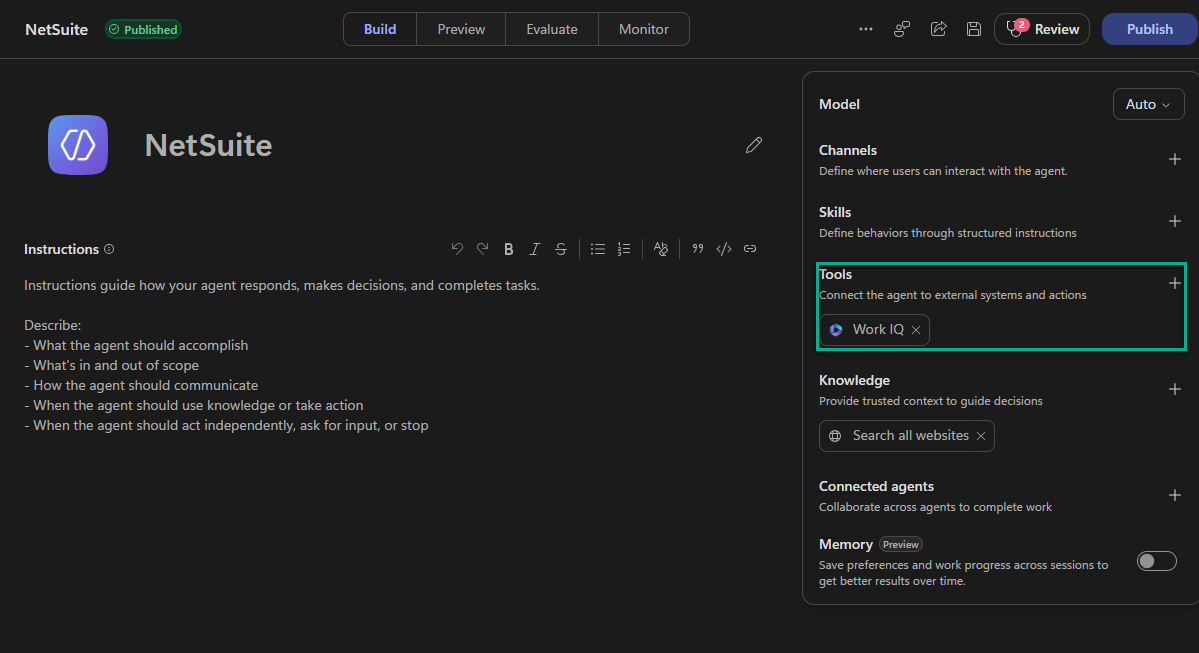
In Copilot Studio, open your agent. On the Build tab, select + next to Tools in the right-hand panel.
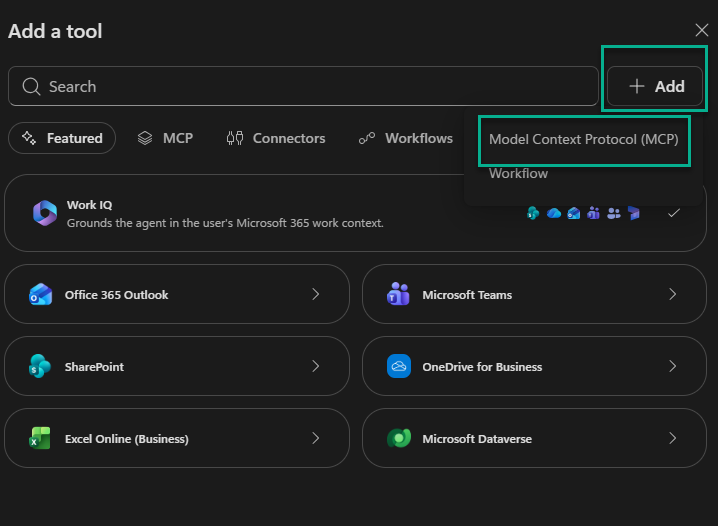
In Add a tool, select + Add > Model Context Protocol (MCP). The Add MCP server form opens.
Microsoft's documentation still describes an older path (Tools > Add a tool > New tool > Model Context Protocol). The form is the same either way. Fill in:
Field
Value
Server name
NetSuite
Server description
Looks up NetSuite customers, items, and transactions, runs saved searches and reports, and runs read-only SuiteQL queries.
Server URL
One of the endpoints below
Authentication
OAuth 2.0
Write the description carefully. Copilot's orchestrator reads it to decide when to call NetSuite.
Server URL. Use your account ID in lowercase, and replace the underscore in sandbox IDs with a hyphen (1234567_SB1 becomes 1234567-sb1).
Endpoint
What it exposes
https://<accountid>.suitetalk.api.netsuite.com/services/mcp/v1/all
Every MCP tool installed in the account (standard and custom).
https://<accountid>.suitetalk.api.netsuite.com/services/mcp/v1/suiteapp/com.netsuite.mcpstandardtools
Only the MCP Standard Tools SuiteApp.
Don't drop the /all: the base /services/mcp/v1 URL on its own shows as disconnected. If you've built custom tools, the SuiteApp-specific endpoint is a simple way to give one agent a narrow tool set.
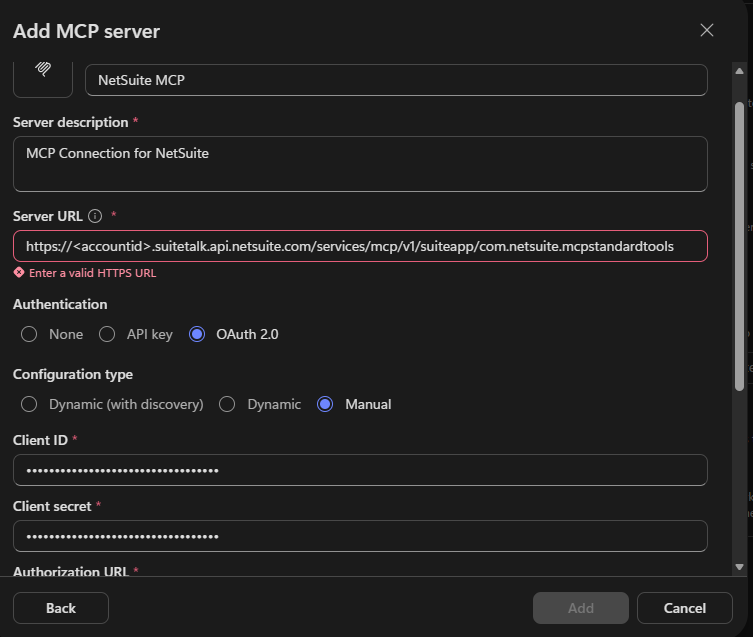
Replace <accountid> with your own account ID. Copilot Studio rejects the placeholder, as shown.
Step 6: Configure OAuth 2.0
Copilot Studio offers three OAuth types:
- Dynamic (with discovery): the client finds the endpoints and registers itself (Dynamic Client Registration).
- Dynamic: you enter the endpoints, the client registers itself.
- Manual: you enter everything, including a Client ID and Client secret.
NetSuite's setup uses an integration record you create yourself, so choose Manual and enter:
Field
Value
Client ID
From the integration record (Step 4)
Client secret
From the integration record (Step 4)
Authorization URL
https://<accountid>.app.netsuite.com/app/login/oauth2/authorize.nl
Token URL template
https://<accountid>.suitetalk.api.netsuite.com/services/rest/auth/oauth2/v1/token
Refresh URL
Same as the token URL
Scopes
mcp
Select Create. Copilot Studio shows a callback URL that starts with https://global.consent.azure-apim.net/redirect/ followed by an id unique to your connector. Copy it, go back to the NetSuite integration record, replace the placeholder redirect URI with it, and save. The two must match exactly.
Why Public Client is off for Copilot Studio
Oracle's AI Connector Service documentation describes a public client: the integration record has Public Client checked, has no client secret, and the AI client signs in with Authorization Code and PKCE. That's what Claude and ChatGPT use.
Copilot Studio works differently. Its Manual OAuth form requires a Client secret, and the agent sends it with the Client ID when it exchanges the authorization code for tokens. A public client has no secret to give it, so the setup stalls at the form.
The fix is on the NetSuite side: leave Public Client unchecked. NetSuite then treats the integration record as a confidential client and issues a Client ID and Client Secret, which go straight into Copilot's Manual OAuth fields. Everything else stays the same: Authorization Code Grant, the NetSuite AI Connector Service scope, and the non-Administrator role.
Keep the secret safe. Anyone with the Client ID, the secret and a user's sign-in can request tokens for that integration, so store it like a password and reset it if it leaks.
Step 7: Connect and test
In the Add tool dialog, select Create a new connection, sign in to NetSuite with a user who has the MCP role, and select Add to agent. The NetSuite tools should appear on the agent's Tools page.
Start with read-only prompts that you can check against NetSuite:
- "Find the customer record for ABC Manufacturing and show the open balance."
- "Show me the lines on sales order SO12345."
- "Run my Open Sales Orders saved search and summarize it by customer."
- "Using SuiteQL, count invoices created this month by subsidiary."
Then open the activity trace in Copilot Studio's test pane to see which tool ran and what it returned. Compare the answer with the record or saved search in NetSuite. If the numbers don't match, the problem is usually the role's permissions or a saved search with filters the agent didn't expect.
Limits to know
- SuiteQL tools are read-only.
- Reports accept only date and subsidiary filters, not accounting periods.
- Large results get cut off. AI clients typically handle about 5,000 rows per call. Ask for summaries or use a saved search that already aggregates.
- Concurrency is shared with your other integrations. Heavy agent use can cause "Too Many Requests" errors elsewhere. You can allocate concurrency per integration record.
- The MCP Execution Log keeps 21 days of history in production and 7 in sandbox.
Licensing
NetSuite doesn't charge for the AI Connector Service or the MCP Standard Tools SuiteApp. Copilot Studio is billed by Microsoft in Copilot Credits, through prepaid capacity or pay-as-you-go. Some use by people with Microsoft 365 Copilot licenses may be included, depending on Microsoft's terms. Set a spending limit in the Power Platform admin center before you share the agent.
If a test fails with EnforcementUsageCredits, the environment is out of credits. That's a Microsoft capacity issue, not a NetSuite OAuth problem. Check capacity and billing in the Power Platform admin center.
Troubleshooting
Symptom
Likely cause
NetSuite won't save the integration record
Redirect URI is empty. Use a placeholder, then replace it with Copilot's callback URL.
Sign-in fails with a redirect error
The redirect URI in NetSuite doesn't exactly match Copilot's callback URL.
Copilot asks for a client secret you don't have
Public Client is checked on the integration record. Uncheck it, save, and copy the new Client ID and Client Secret.
Token exchange fails after sign-in (for example invalid_client)
Wrong or reset client secret, or Public Client still checked. Re-enter the credentials in Copilot Studio.
Sign-in works but no tools appear
MCP Standard Tools SuiteApp not installed, the URL is missing /all, or the role lacks REST Web Services.
"Insufficient permissions" or role errors
The role is missing MCP Server Connection or OAuth 2.0 Access Tokens, or the user signed in as Administrator.
Agent answers but numbers look wrong
The role can't see some records (subsidiary restrictions, record permissions), or the result was cut off.
Agent worked for days, now asks users to sign in again
The refresh token expired (168 to 720 hours, set on the integration record). Sign in again or lengthen the lifetime.
"Too Many Requests"
Shared concurrency limit. Allocate concurrency on the integration record.
Credit or capacity error
Copilot Credits exhausted in the Power Platform environment.
Security checklist
- Use a dedicated, least-privilege role per agent. Never Administrator (NetSuite blocks it anyway).
- Expose only the tools the agent needs. The SuiteApp-specific endpoint helps.
- Keep payroll, employee, and bank data out of the role unless the use case requires it.
- Don't enable create/edit tools until you've tested them on representative records.
- Store the client secret like a password and reset it if it leaks.
- Review the NetSuite MCP Execution Log and Copilot Studio activity regularly.
- Apply a Power Platform data policy to the NetSuite connector.
- Decide in writing what NetSuite data may be processed by Microsoft's AI services.
- NetSuite says the AI Connector Service hasn't been assessed for HIPAA. Don't send protected health information through it.
FAQ
Can Microsoft Copilot connect to NetSuite?
Yes. A Copilot Studio agent can add NetSuite's AI Connector Service as an MCP tool. Users sign in with their own NetSuite login, and the agent can then use the installed MCP tools within that user's role permissions. For Copilot Studio, create the NetSuite integration record with Public Client unchecked so it issues the client secret Copilot's OAuth form requires.
Is the NetSuite AI Connector Service free?
NetSuite doesn't charge for the AI Connector Service or the MCP Standard Tools SuiteApp. You pay for the AI client, in this case Copilot Studio capacity (Copilot Credits) or eligible Microsoft licensing.
Why can't I connect with the Administrator role?
NetSuite blocks Administrator sessions on the AI Connector Service. Create a dedicated role with MCP Server Connection, OAuth 2.0 Access Tokens, and REST Web Services, plus only the record permissions the agent needs.
What's the NetSuite MCP server URL?
https://<accountid>.suitetalk.api.netsuite.com/services/mcp/v1/all for all installed tools, or .../services/mcp/v1/suiteapp/<applicationid> for one SuiteApp's tools. Use the account ID in lowercase, with a hyphen for sandboxes (1234567-sb1).
How often do users have to sign in again?
When the refresh token expires. You set its lifetime on the NetSuite integration record, from 168 to 720 hours (7 to 30 days). After that, each user signs in to NetSuite again from Copilot.
Can a Copilot agent create or update NetSuite records?
Yes, if the installed tools support it and the user's role allows it. SuiteQL tools are read-only. Start with a View-only role and add write permissions after testing.
Does this replace a NetSuite integration?
No. MCP is good for people asking questions and taking occasional actions. Scheduled syncs, high-volume data movement, and system-to-system processes still belong in a proper integration (REST web services, RESTlets, or an iPaaS).